

Register for Microsoft Authenticator using a temporary access pass
Contact Service Desk
Microsoft Authenticator is the most secure way to confirm who you are when you sign in. You need it to access webmail or Microsoft 365 web apps on a mobile phone, personal computer, or other device not managed by eHealth.
If you don’t have eHealth managed devices or VDI access, contact the Service Desk to request a temporary access pass, also called a TAP code. Then follow the steps below to register for Microsoft Authenticator.
1. Go to https://aka.ms/mysecurityinfo or https://mysignins.microsoft.com/security-info from your computer.
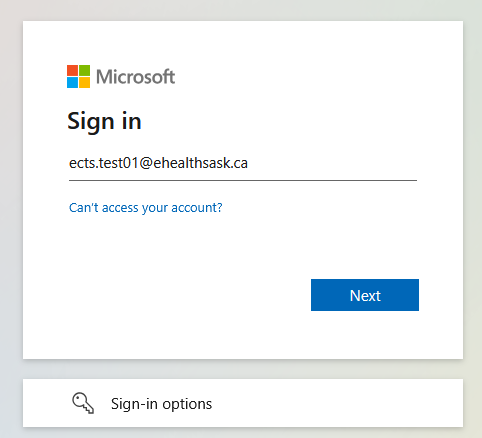
2. Enter your work email address and click Next.
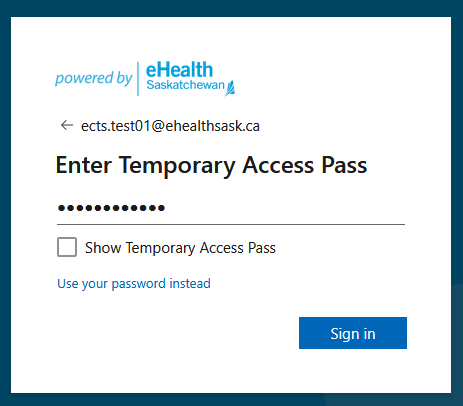
3. Enter your TAP code provided by Service Desk and click Sign in.
The TAP code can only be used once. If another sign-in attempt is needed, a new TAP needs to be generated. TAP codes are only valid for three hours.
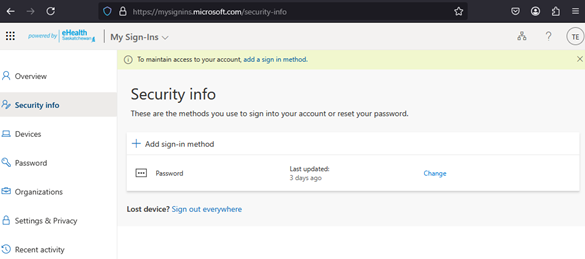
4. Click the + Add sign-in method button
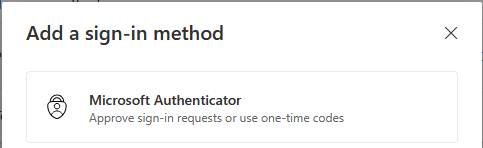
5. Select Microsoft Authenticator.
6. Follow the on-screen prompts to register your mobile phone with the Microsoft Authenticator app.
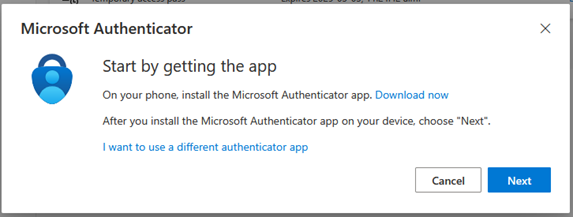
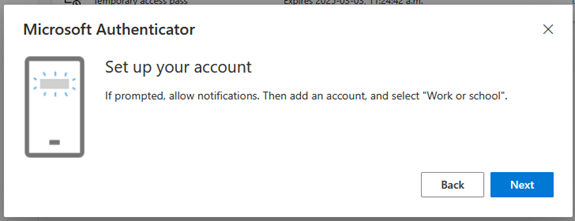
7. Open the Microsoft Authenticator app on your mobile phone.
8. Click the three dots or + sign (depending on your phone’s operating system).
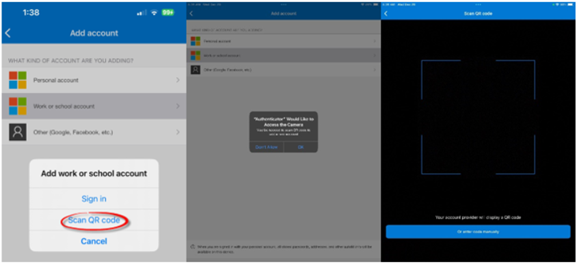
9. Choose work/school account
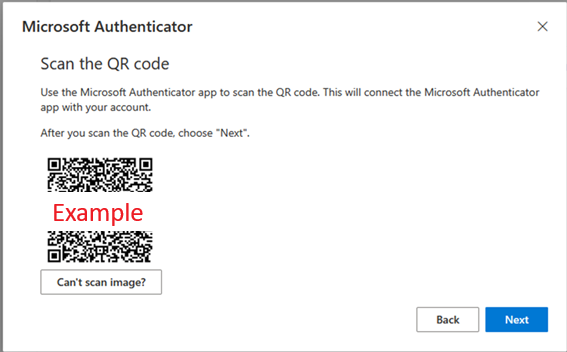
10. Scan the QR code on your computer screen and click Next.
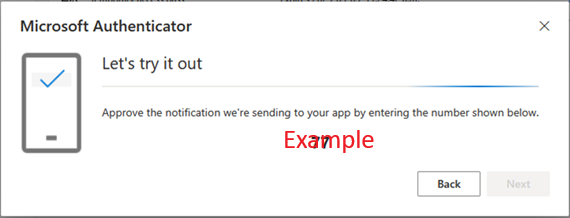
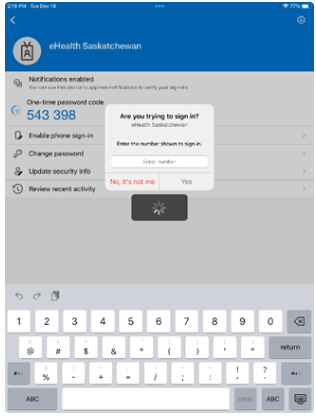
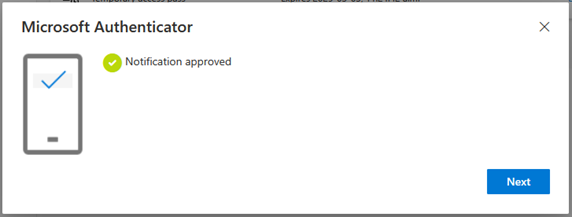
11. On your mobile phone, enter the two numbers from your computer screen.
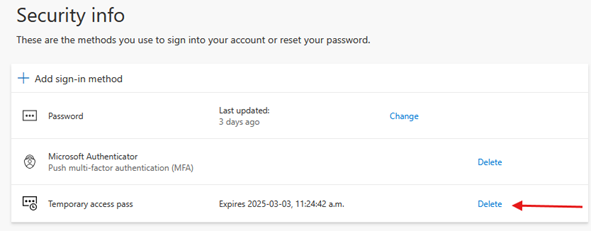
12. Delete the TAP entry from your list of authentication methods.
13. You've completed registration for Microsoft Authenticator.